Getting Started
Logging In
When presented with this screen you log in with the KOJI_SECRET you set in your
.env or docker-compose.yml file.
Projects
A “project” in Kōji is how you create custom endpoints for distributing your geofences to the various integrations. Let’s quickly walk through the process of setting up a basic project to use with ReactMap.
Navigate to the Admin Panel by clicking the Admin button on the landing page.
Navigate to the Projects panel by clicking Projects in the left-hand side drawer.
Click Create to start your new project.
Give your project a name, such as ReactMap.
💡
If your project is your scanner, you can set Scanner to true by clicking the
toggle switch.
If your project supports a refresh endpoint to make it call Kōji again for updated geofences, you can input the API endpoint here, as well as any headers. For this example, we will ignore these though.
Click Save to create your new project.
Below we will go through different ways you can import your existing fences and assign them to your new project.
Once you’ve completed those steps, your geofences assigned to this project will now be accessible at http://{your_koji_url}/api/v1/geofence/feature-collection/ReactMap.
Projects don’t have to be strictly used with external integrations though. Kōji’s client can also import geofences by project so it may be convenient to group them for this reason as well.
💡
Please see Integrations for assistance with a specific project.
Import existing Projects
After logging in, click the Map button on the landing page.
Open up the drawer, and go to the Import panel.
Click the Import Wizard button.
In the JSON section, click Browse and select your desired file, such as the areas.json file from ReactMap or geofence.json from PoracleJS .
No matter what format you use, they will be converted into standard GeoJSON features.
Click Next.
If the features from your file have a name property that isn’t called name, you can select which one Kōji should use in step 2.
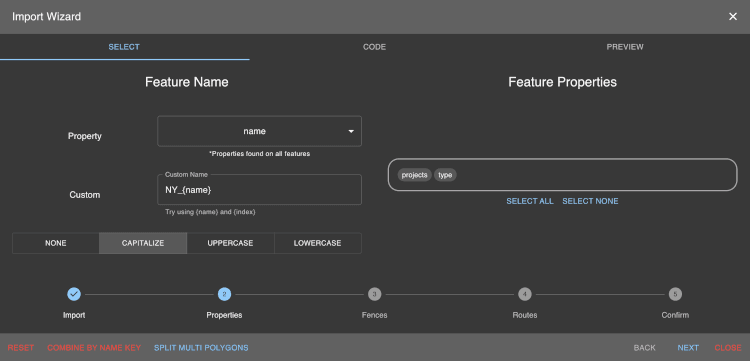
You can also select which properties you would like to save to the Kōji database.
There are two special actions, “Combine by Name Key” and “Split Multi Polygons”.
- “Combine by Name Key” will combine all features with the same name into one feature (rare).
- “Split Multi Polygons” will split any MultiPolygons into multiple Polygons, this might be useful if your integration does not support MultiPolygons.
Click Next.
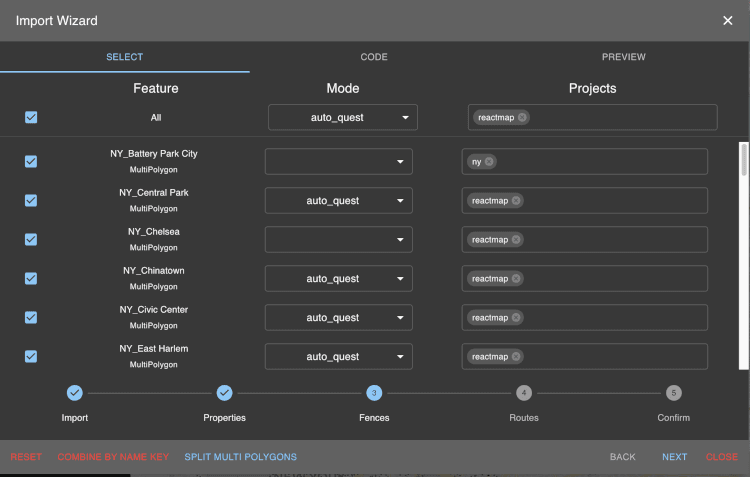
Now you can choose to assign each feature a mode and a project to be associated with. If you haven’t already created a project, you can add one directly from this menu by typing in the name of the new project and clicking Add {project_name}.
Click Next.
Same as above but for routes.
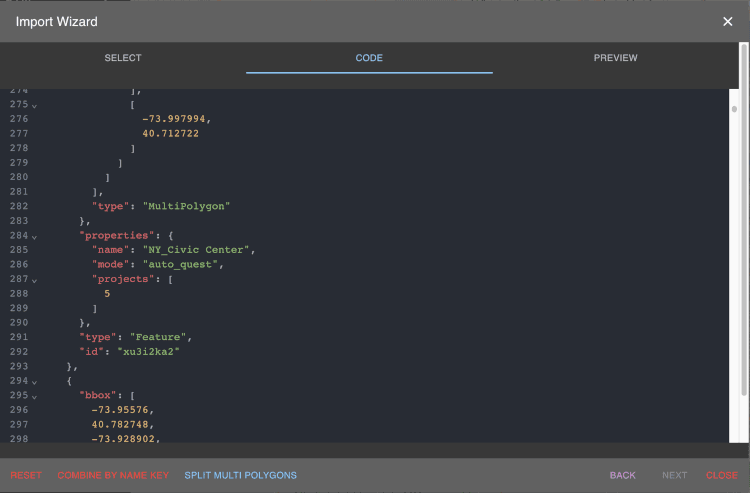
At any point you can check out the current code generated and a preview of your features on a map.
Map
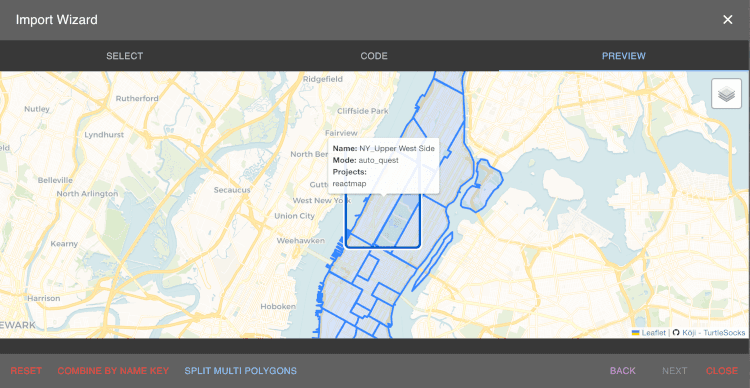
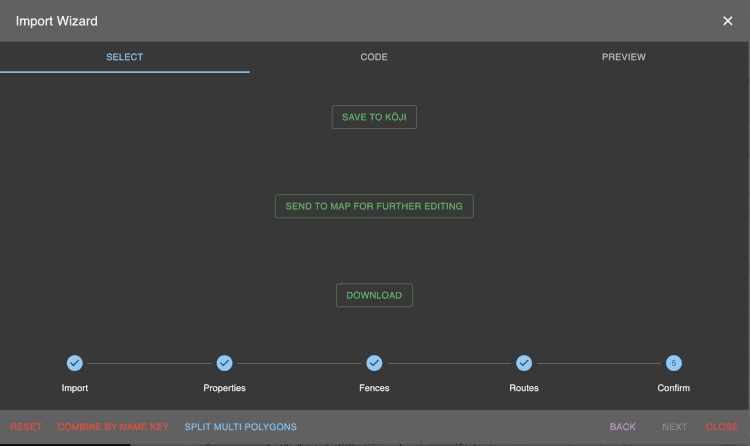
Click Save to Kōji to save all of the selected routes and fences to the respective tables in the Kōji database.
Repeat for however many projects/files you want to import. The import wizard can import from all sorts of different sources, including Nominatim and shape files.
Dragonite Quick Start
Complete the above steps to initialize Kōji.
If you are starting from scratch and have no existing areas:
- Visit the Kōji Map.
- Create a fence.
- Name it and save it to the Kōji database.
Visit the Kōji Map.
Load your fence (if it isn’t present).
Go to the Calculation tab.
Select Bootstrap Mode:
- Strategy: Radius (for pokemon), S2 (for forts)
- Save to Kōji Db: Enabled
- Save to Scanner db: Enabled
- Skip Rendering: Enabled
Click update.
Once complete, navigate to the Admin portal of Kōji.
Click “Sync” on the geofence. This will create the Area in Dragonite if it doesn’t exist.
Click “Sync” on the route. This will push the bootstrap route into Dragonite.
Add that new fence to your Dragonite project (and to your consumer project like Poracle, RM, or Golbat if you don’t want to split it up).
In Dragonite admin:
Back in Kōji:
Wait a few hours or a day for the bootstrap to update.
Load the fence into Kōji again and run Pokemon route (again with save to Kōji and save to scanner DBs selected). If doing multiple fences, load the fence names into a script (check docs) and call it via API.
Back in Dragonite admin:
Last updated on